Teams recording setup (Manual)
Setup process
Getting Started
Setting up Teams recording with Focus is straightforward and can be configured to match your organization's specific recording policies. Whether you need compliant recording for regulatory purposes or convenience recording for business optimization, our solution adapts to your requirements.
Focus uses a dual-bot recording architecture. Two recording bots work together as a paired set to provide reliable and resilient recording of your Teams calls and meetings.
Requirements
To setup the required policy option you will need the below:
- An Azure global admin user account or Teams global admin user account
- A Focus Super user account
- The following IDs provided by the Aiphoria support team:
- Recording Bot 1 Application ID (referred to as
XXXX-XXXX-RECORDING-BOT-1-IDin this guide) - Recording Bot 2 Application ID (referred to as
XXXX-XXXX-RECORDING-BOT-2-IDin this guide) - Entra Sync Application ID (referred to as
XXXX-XXXX-ENTRA-SYNC-IDin this guide)
- Recording Bot 1 Application ID (referred to as
Contact your Aiphoria support or onboarding team to obtain the correct Application IDs for your environment and region before starting.
Manual - First setup
Bot enablement
The first time you enable teams recording (of any type) your azure admin user will need to allow the Focus portal and recording bots to connect to your Microsoft instance. You need to grant admin consent for both recording bots.
If you are in any doubt about the account you are currently logged in as, please use an incognito window to ensure a fresh login.
-
Your support team will provide you with Admin Consent URLs for both recording bots. Open the Bot 1 consent link in a browser that is logged into the correct tenant you wish to connect to Focus for recording.
The URL will be in the format:
https://login.microsoftonline.com/common/adminconsent?client_id=XXXX-XXXX-RECORDING-BOT-1-ID&state=1&redirect_uri=https://www.aiphoria.net/focus/teams-setup-complete -
If you have multiple Microsoft accounts, select the correct Microsoft global administrator account or login as normal.
-
Accept the permissions required to allow the Focus bot to subscribe to your tenant.
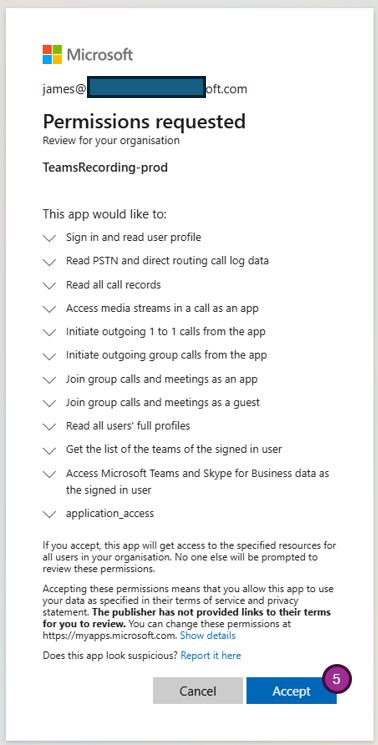
-
Once successful you will be redirected to a success page. Now repeat the consent for Bot 2 using the second URL:
https://login.microsoftonline.com/common/adminconsent?client_id=XXXX-XXXX-RECORDING-BOT-2-ID&state=1&redirect_uri=https://www.aiphoria.net/focus/teams-setup-complete -
Accept the permissions again. Once both consents are complete, continue with the Entra Sync consent below.
Entra Sync consent
Focus uses an Entra Sync application to synchronise users from your Azure AD / Entra ID. You need to grant admin consent for this application in addition to the recording bots above.
-
Your support team will provide you with an Entra Sync consent URL. Open this link in the same browser session.
The URL will be in the format:
https://login.microsoftonline.com/common/adminconsent?client_id=XXXX-XXXX-ENTRA-SYNC-ID&state=12345&redirect_uri=https://www.aiphoria.net/focus/focus-entra-sync-complete -
Accept the permissions as before.
Your onboarding team will confirm which sync type (Bidirectional or Read-Only) is required for your deployment. If unsure, please ask before proceeding.
PowerShell configuration steps
PowerShell setup
The following steps must be carried out in PowerShell.
- Open PowerShell as an administrator.
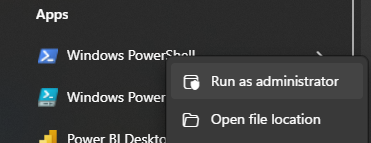
- Run the below command to allow remote scripts to run (this only changes your current PowerShell session)
Set-ExecutionPolicy -ExecutionPolicy RemoteSigned -Scope Process
- Install the Microsoft Teams PowerShell module (you only need to install the module the first time it is run)
Install-Module MicrosoftTeams -Force -Scope CurrentUser -AllowClobber
- Install the Microsoft Graph PowerShell modules (required for creating the security group later)
Install-Module Microsoft.Graph.Authentication -Force -Scope CurrentUser -AllowClobber
Install-Module Microsoft.Graph.Groups -Force -Scope CurrentUser -AllowClobber
Install-Module Microsoft.Graph.Identity.DirectoryManagement -Force -Scope CurrentUser -AllowClobber
- Import the modules into your session
Import-Module MicrosoftTeams -Force
Import-Module Microsoft.Graph.Authentication -Force
Import-Module Microsoft.Graph.Groups -Force
Import-Module Microsoft.Graph.Identity.DirectoryManagement -Force
- Connect your PowerShell window to Microsoft Teams. Once run you should be prompted to login to the correct Microsoft account
Connect-MicrosoftTeams
This must be the same account as you authorized the Teams Bots under the Bot enablement section above.
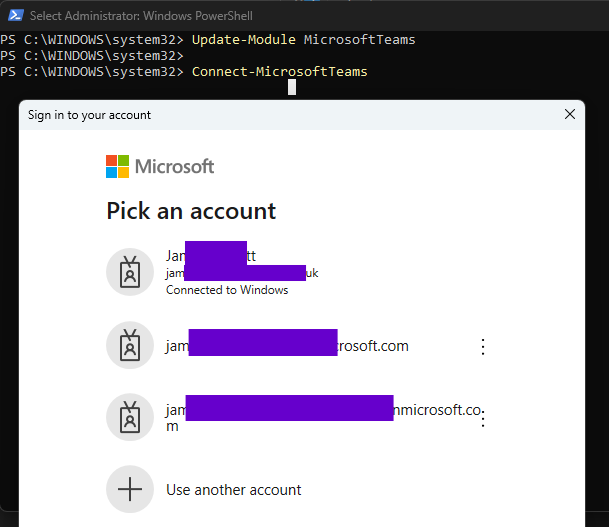
- Connect to Microsoft Graph (required for group management)
Connect-MgGraph -Scopes "Group.ReadWrite.All","Organization.Read.All" -NoWelcome
Create the application instances (recording bots)
Once everything is installed and PowerShell is connected to Teams and Graph, it is time to create the recording bots. Focus requires two bot application instances that work together as a paired set.
Create Bot 1:
- Run the below command, replacing the placeholder values with your own:
- UserPrincipalName: This is the recording bot's "name". It needs to be an email address with the same domain as your Microsoft Teams instance. We recommend using your "onmicrosoft" address. Note the
_1suffix to distinguish it from Bot 2.- In this example we will use: focusrecordingbot_1@megacorp.onmicrosoft.com
- DisplayName: This is the name for the recording bot. It doesn't show to any users so can be anything you wish.
- In this example we will use: FocusRecordingBot_1
- ApplicationId: The Recording Bot 1 Application ID provided by the Aiphoria support team.
New-CsOnlineApplicationInstance -UserPrincipalName focusrecordingbot_1@megacorp.onmicrosoft.com -DisplayName FocusRecordingBot_1 -ApplicationId XXXX-XXXX-RECORDING-BOT-1-ID
- Once the command has completed, the application instance details will be displayed:
- RunspaceId : rrrrrrrr-rrrr-rrrr-rrrr-rrrrrrrrrrrr
- ObjectId : oooooooo-oooo-oooo-oooo-oooooooooooo
- TenantId : tttttttt-tttt-tttt-tttt-tttttttttttt
- UserPrincipalName : focusrecordingbot_1@megacorp.onmicrosoft.com
- ApplicationId : XXXX-XXXX-RECORDING-BOT-1-ID
- DisplayName : FocusRecordingBot_1
Make a note of the ObjectId for Bot 1 — you will need this in later steps. We will refer to this as BOT-1-OBJECT-ID.
- Stamp the ApplicationId on the bot instance:
Set-CsOnlineApplicationInstance -Identity BOT-1-OBJECT-ID -ApplicationId XXXX-XXXX-RECORDING-BOT-1-ID
If you get an error saying the bot was "not found", wait 30 seconds and try again — it can take a moment for the new instance to propagate.
- Sync Bot 1:
Sync-CsOnlineApplicationInstance -ObjectId BOT-1-OBJECT-ID -ApplicationId XXXX-XXXX-RECORDING-BOT-1-ID
After syncing, wait around 30 seconds before proceeding to allow propagation.
Create Bot 2:
- Now create the second bot instance, using the Bot 2 Application ID and a
_2suffix:
New-CsOnlineApplicationInstance -UserPrincipalName focusrecordingbot_2@megacorp.onmicrosoft.com -DisplayName FocusRecordingBot_2 -ApplicationId XXXX-XXXX-RECORDING-BOT-2-ID
Make a note of the ObjectId for Bot 2. We will refer to this as BOT-2-OBJECT-ID.
- Stamp the ApplicationId on Bot 2:
Set-CsOnlineApplicationInstance -Identity BOT-2-OBJECT-ID -ApplicationId XXXX-XXXX-RECORDING-BOT-2-ID
- Sync Bot 2:
Sync-CsOnlineApplicationInstance -ObjectId BOT-2-OBJECT-ID -ApplicationId XXXX-XXXX-RECORDING-BOT-2-ID
Wait around 30 seconds after syncing before proceeding.
Create the compliance recording policy
- Create the recording policy. You need to pass the following values:
- Description: A simple description for the policy.
- In this example we will use: MegaCorp Compliance Recording Policy
- Tag: A single string identifier for the policy. Note: this is passed as the last positional parameter.
- In this example we will use: MegaCorpComplianceRecordingPolicy
It helps to include the company / organisation name in the description for any troubleshooting.
New-CsTeamsComplianceRecordingPolicy -Enabled $true -Description "MegaCorp Compliance Recording Policy" MegaCorpComplianceRecordingPolicy
Once this command has completed, the policy details should be displayed:
- Identity : Tag:MegaCorpComplianceRecordingPolicy
- ComplianceRecordingApplications :
- Enabled : True
- WarnUserOnRemoval : True
- Description : MegaCorp Compliance Recording Policy
Link Bot 1 to the policy
- Link Bot 1 to the policy. Only Bot 1 is linked directly — Bot 2 will be paired onto Bot 1 in the next step.
- Id: The ObjectId of Bot 1 (
BOT-1-OBJECT-ID). - Parent: The policy tag from step 8.
New-CsTeamsComplianceRecordingApplication -Parent "MegaCorpComplianceRecordingPolicy" -Id "BOT-1-OBJECT-ID"
If you get a "not a valid application instance" error, wait 30 seconds and try again. It can take time for the bot to propagate through the Teams service.
Pair Bot 2 with Bot 1
- Now pair Bot 2 as a ComplianceRecordingPairedApplication on Bot 1. This links the two bots together so they work as a set.
First, create the paired application object using Bot 2's ObjectId:
$pairedApp = New-CsTeamsComplianceRecordingPairedApplication -Id "BOT-2-OBJECT-ID"
Then set it on Bot 1's compliance recording application entry. The Identity is in the format Tag:PolicyName/Bot1ObjectId:
Set-CsTeamsComplianceRecordingApplication -Identity "Tag:MegaCorpComplianceRecordingPolicy/BOT-1-OBJECT-ID" -ComplianceRecordingPairedApplications @($pairedApp)
- Confirm both bots are linked correctly:
Get-CsTeamsComplianceRecordingApplication
You should see Bot 1 listed with Bot 2 shown under ComplianceRecordingPairedApplications.
Set compliance or convenience recording options
As detailed under the recording options, for some compliance use cases companies are not permitted to make calls unless they are being recorded. This is the Microsoft default setting and it will prevent any calls if there is a loss of connection between a user and the recorder. If you wish to change this policy to use convenience recording follow the instructions below. If compliant recording is what you need, you can skip this section.
If you are not mandated by law to record your calls we recommend switching to convenience recording using the below settings for all 4 policy options.
- The convenience flags are set on Bot 1's compliance recording application entry. The Identity is the same format used in the pairing step above:
- Identity:
Tag:PolicyName/Bot1ObjectId- In our example: MegaCorpComplianceRecordingPolicy/BOT-1-OBJECT-ID
- There are 4 options you can set:
- RequiredBeforeCallEstablishment — set to
$falseto allow PSTN calls if the Bot is not reachable. - RequiredBeforeMeetingJoin — set to
$falseto allow meetings to be joined if the Bot is not reachable. - RequiredDuringCall — set to
$falseto allow calls to continue if the Bot drops during a call. - RequiredDuringMeeting — set to
$falseto allow meetings to continue if the Bot drops during a meeting.
- RequiredBeforeCallEstablishment — set to
You can set multiple options on the same line. The below example sets all 4, which is recommended for convenience recording:
Set-CsTeamsComplianceRecordingApplication -Identity MegaCorpComplianceRecordingPolicy/BOT-1-OBJECT-ID -RequiredBeforeCallEstablishment $false -RequiredBeforeMeetingJoin $false -RequiredDuringCall $false -RequiredDuringMeeting $false
- Verify the changes were saved:
Get-CsTeamsComplianceRecordingApplication

Create the security group for recorded users
You need a security group in Entra ID (Azure AD) to control which users are recorded. Focus will sync and record any users placed in this group.
- Create the security group using Microsoft Graph PowerShell. Replace the group name with whatever your onboarding team has specified (we use Focus Recorded Users in this example):
New-MgGroup -DisplayName "Focus Recorded Users" -Description "Users recorded by Focus" -MailEnabled:$false -MailNickname "FocusRecordedUsers" -SecurityEnabled:$true
Once created, the group details will be displayed. Make a note of the Id — this is the Group ID needed for the next step.
After creating the group, wait approximately 30 seconds for it to propagate to the Teams service before continuing.
If you prefer, you can also create this group via the Microsoft 365 admin center at https://admin.cloud.microsoft/ under Teams & Groups → Active teams & groups → Security groups → Add a security group.
Assign the policy to the group
Users can be assigned on a per-user basis, however it is recommended to use the group approach described below so that any users added to the group are automatically assigned the policy.
- Run the following command, replacing the values with your own:
- GroupId: The Group Id from step 14.
- In our example: ggggggg-gggg-gggg-gggg-gggggggggggg
- PolicyType: Always TeamsComplianceRecordingPolicy
- PolicyName: The policy tag created in step 8.
- In our example: MegaCorpComplianceRecordingPolicy
- Rank: Always 1
New-CsGroupPolicyAssignment -GroupId ggggggg-gggg-gggg-gggg-gggggggggggg -PolicyType TeamsComplianceRecordingPolicy -PolicyName MegaCorpComplianceRecordingPolicy -Rank 1
If you get a "Provided group does not exist" error, wait 30 seconds and try again. The group may still be propagating to the Teams service.
Verify the setup
- Check the policy is assigned to the group:
Get-CsGroupPolicyAssignment -PolicyType TeamsComplianceRecordingPolicy
- Check a specific user has the correct policy assigned (replace with a real user email from your group):
Get-CsUserPolicyAssignment -Identity useremail@companydomain.com -PolicyType TeamsComplianceRecordingPolicy
- Review the full policy details:
Get-CsTeamsComplianceRecordingPolicy
- Check both bots are correctly linked and paired:
Get-CsTeamsComplianceRecordingApplication
You should see Bot 1 listed as the main compliance recording application with Bot 2 under ComplianceRecordingPairedApplications.
Removing Teams recording
If you need to remove the Teams recording configuration from your tenant, see the manual removal guide.